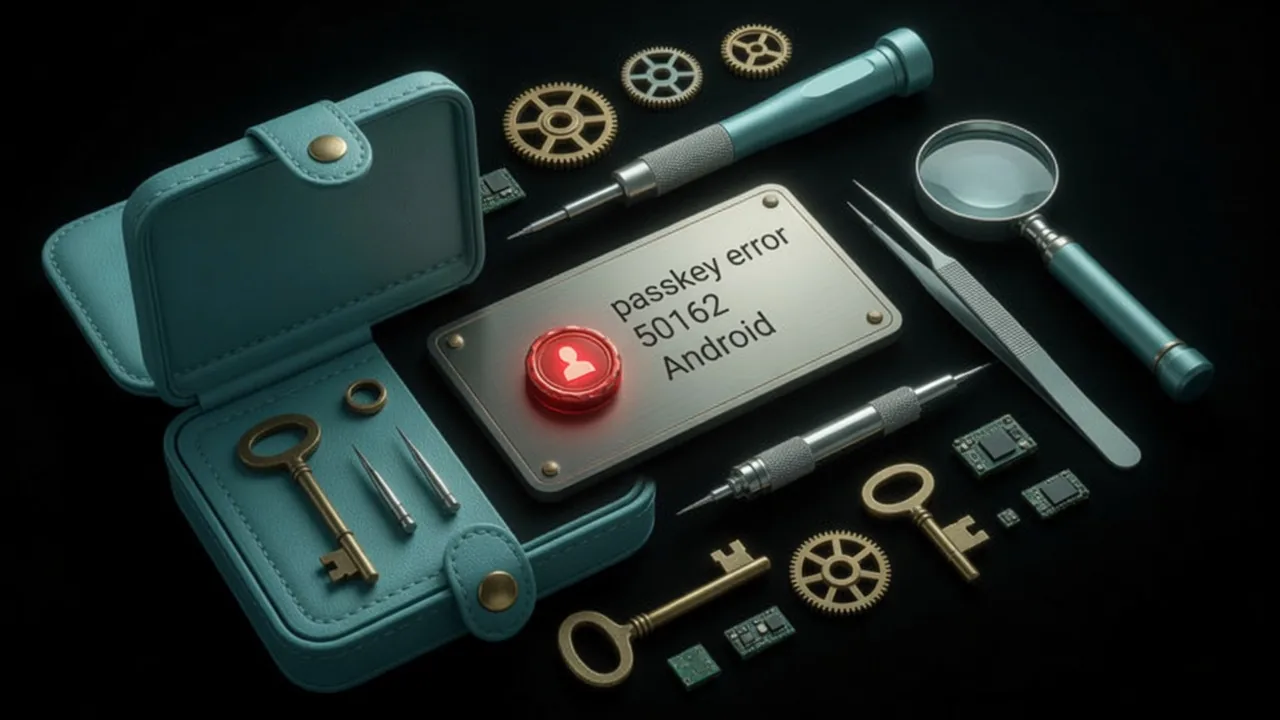

Why does passkey error 50162 happen?
Passkey error 50162 may appear on Android when Google Play services encounter an issue during passkey verification.
Checklist
- How to fix passkey error 50162?
- Go to Settings > All applications on your phone and locate Google Play services.
- Select the kebab menu icon and select Uninstall updates.
- Select Uninstall updates
- After the updates are removed, scroll down and select App details to open the Google Play Store page.
- Select Update and wait for the update to complete.
- How do I delete the damaged passkey in my OKX app?
- When the error message appears, select the option to delete the damaged passkey.
- How do I delete the damaged passkey in my Google Password Manager?
- To delete the same passkey in Google Password Manager, please go to the Google Play Store app.
- Select your profile icon and sign in to your Google account.
- Select your profile icon
Notes
When Google Play fails to complete the verification process, it triggers error 50162. You can fix it by updating Google Play services or deleting the damaged passkey stored in your Google Password Manager.
We recommend two solutions. Start with Method 1, and if the issue continues, follow Method 2 to remove the damaged passkey and recreate it.
Method 1: Update Google Play services
Locate Google Play services in your phone's application list
Details follow the official OKX help article; this page is a learning checklist, not an official mirror.