
Why can't I take screenshots on the desktop app?
Other issues
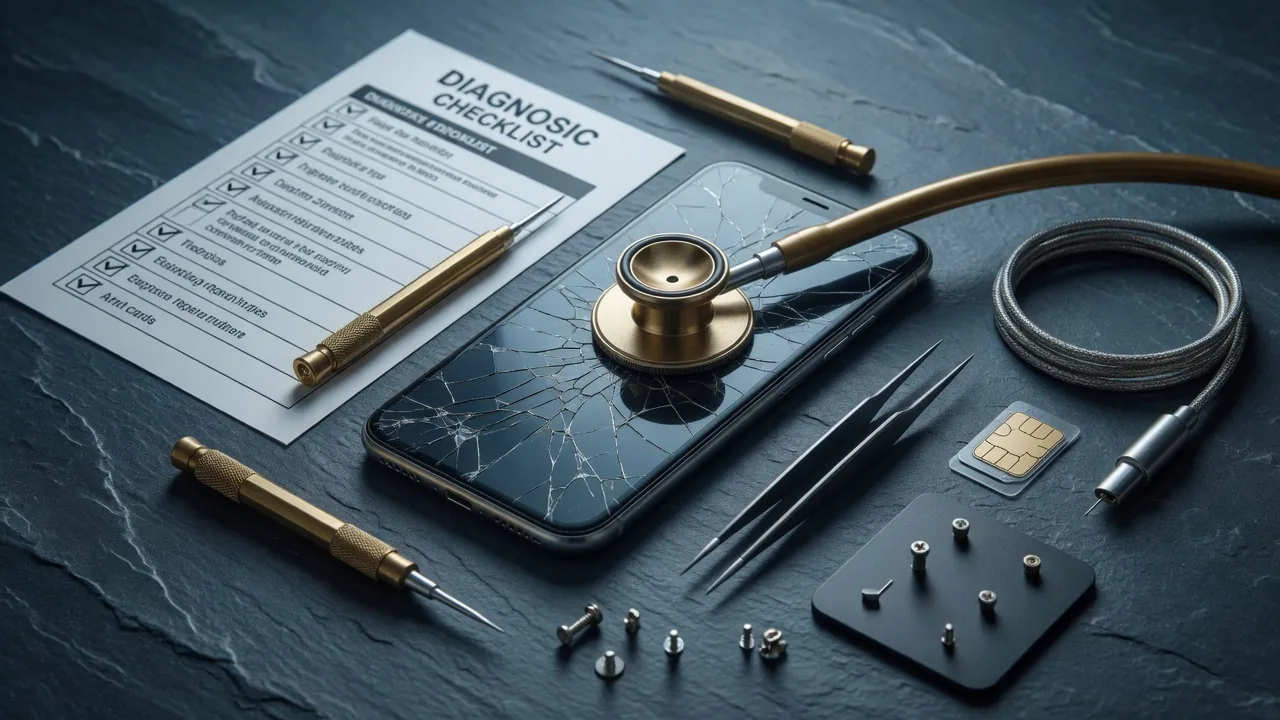
Checklist
- If you're unable to take screenshots in the desktop app, you may right-click on an empty area of the desktop app and enable screen sharing protection.
- Go to Settings > Apps > OKX app > Storage.
- Select Clear Cache first. If issues persist, select Clear Data (this logs you out but fixes many deep bugs).
- Navigate to Menu (9-dot icon) > About OKX > Clear cache. If this option is unavailable, deleting and reinstalling the app achieves the same effect.
- Open your browser settings.
- Select Cookies and Cached files, then confirm to clear them.
Notes
If you experience issues while using the OKX website or app, please try the following troubleshooting steps first:
Use an incognito browser
Try accessing OKX using Incognito mode in your browser.
Clear cache or data
Details follow the official OKX help article; this page is a learning checklist, not an official mirror.